
Objective: Familiarize students with the 3D animation workspace and tools.
What is 3D Animation?
Lesson Overview:
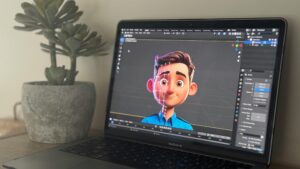
This introductory lesson gives students an understanding of what 3D animation is and how it is used in the real world. It explores examples of 3D animation in various industries, from movies and games to architecture and medical simulations, and introduces students to the software they’ll be using throughout the course—Blender.
Understanding 3D Animation
- Definition: 3D animation is a digital art form where computer software is used to create moving images in a three-dimensional space. Unlike traditional 2D animation, 3D animation gives objects volume and depth, making them appear more realistic.
- Examples of 3D Animation in Real Life:
- Film and Television: Movies like Toy Story, Frozen, and The Lion King (2019) are created using 3D animation, allowing for lifelike characters, scenes, and effects.
- Video Games: Games like Minecraft, Fortnite, and Overwatch use 3D animation to create immersive worlds that players can interact with.
- Architecture and Design: Architects use 3D animation to create virtual models of buildings, helping clients visualize the final product before construction.
- Medical Field: In medical simulations, 3D animations are used to demonstrate surgeries, illustrate anatomy, and train medical students.
- Why Learn 3D Animation?
Learning 3D animation can open doors to careers in film, game design, virtual reality, architecture, and even advertising. Animators use this skill to tell stories, convey information visually, and create interactive experiences.
2. Introduction to Blender
Blender is a powerful, free, and open-source software used for 3D animation, modeling, rendering, and more. It is widely used by both beginners and professionals in the industry.
- Blender’s Key Features:
- 3D Modeling: Create and shape 3D objects.
- Rigging and Animation: Make objects move and create animations.
- Rendering: Generate high-quality images and videos.
- Simulation: Simulate elements like water, smoke, and fire for realistic effects.
Activity: Exploring Blender’s Interface
Students will open Blender and take a guided tour of the main sections, such as the 3D viewport, toolbars, and properties panels. They will learn how to navigate the workspace by panning, rotating, and zooming in on objects.
Familiarizing Students with the 3D Animation Workspace and Tools
Lesson Objective:
To introduce students to the basic elements and tools within the 3D animation workspace, providing them with a comfortable understanding of how to interact with and manipulate objects in a 3D environment.
Lesson Notes:
1. The 3D Animation Workspace
The 3D animation workspace is where all 3D models, animations, and effects are created. Understanding this space is essential for any animation project.
- 3D Viewport: This is the main area where students can see and interact with objects. They can add, move, rotate, and scale objects in this space.
- Timeline: Located at the bottom of the screen, this is used to control the timing and sequence of animations. Students can add keyframes here to animate their models.
- Toolbars and Panels: These contain all the tools needed to create and edit 3D objects. For example:
- Transform Tools: Used to move, rotate, and scale objects.
- Shading and Texture Tools: To add color and texture to models.
- Object and Edit Modes: To switch between creating/editing entire objects or individual parts.
- Example: In a movie scene, the 3D viewport is like a digital film set. Each object represents a character, prop, or scenery that animators manipulate to bring scenes to life.
2. Key Navigation Tools in 3D Animation
Navigating the 3D space requires a few fundamental skills:
- Orbiting: Rotating the view to see an object from different angles.
- Panning: Moving the view horizontally or vertically.
- Zooming: Getting closer to or farther from an object for detailed editing.
Activity: Practicing Navigation
Students will practice moving around in the 3D space using orbit, pan, and zoom. They will learn to select objects and use the transform tools to move, rotate, and scale simple shapes.